Getting started with the admin console
Sign in, find your way around, and finish setting up your workspace.
Who this is for: Anyone with an admin login for the office console.
Signing in
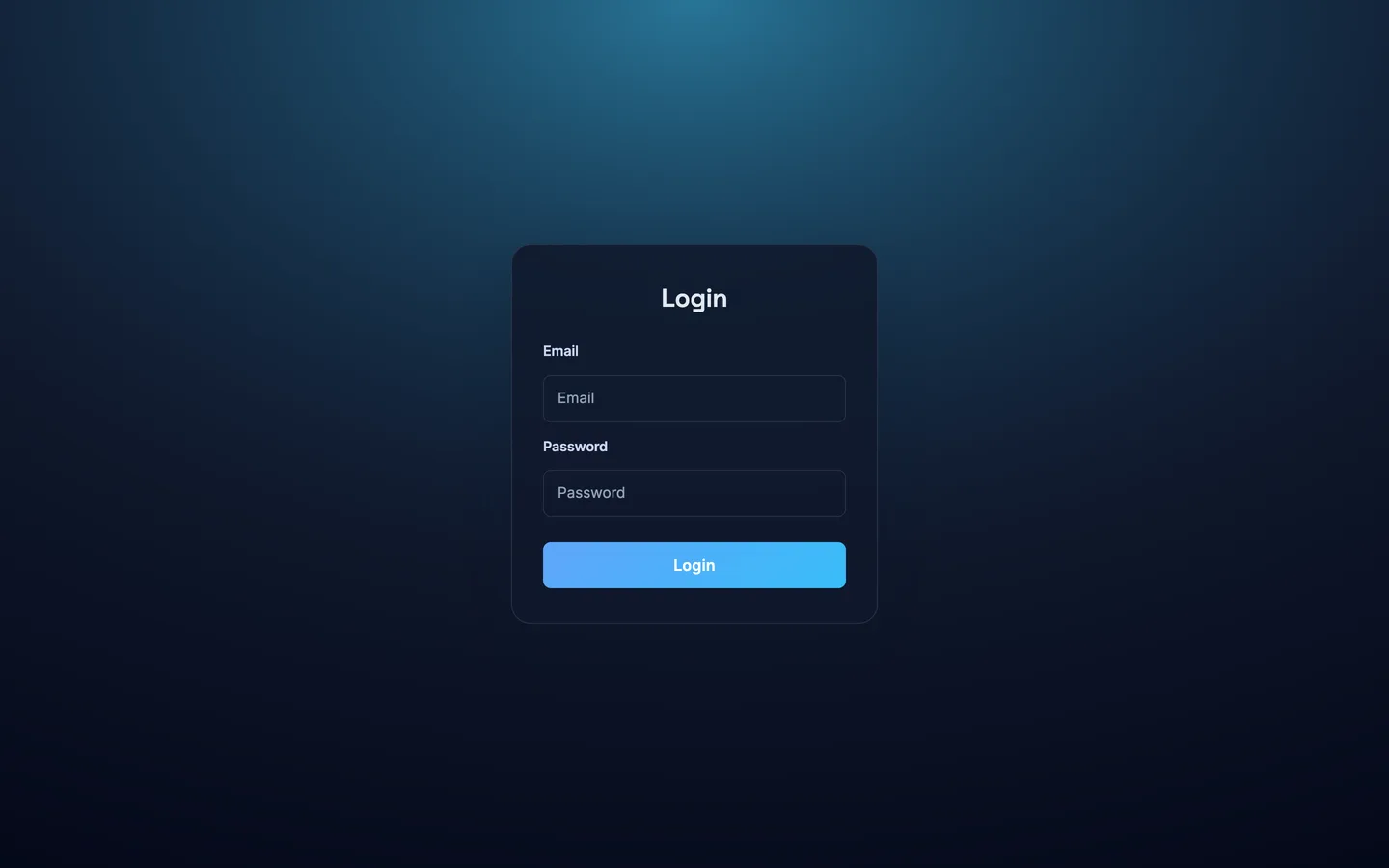
- Open the admin console in your web browser.
- Enter the email address and password you were given.
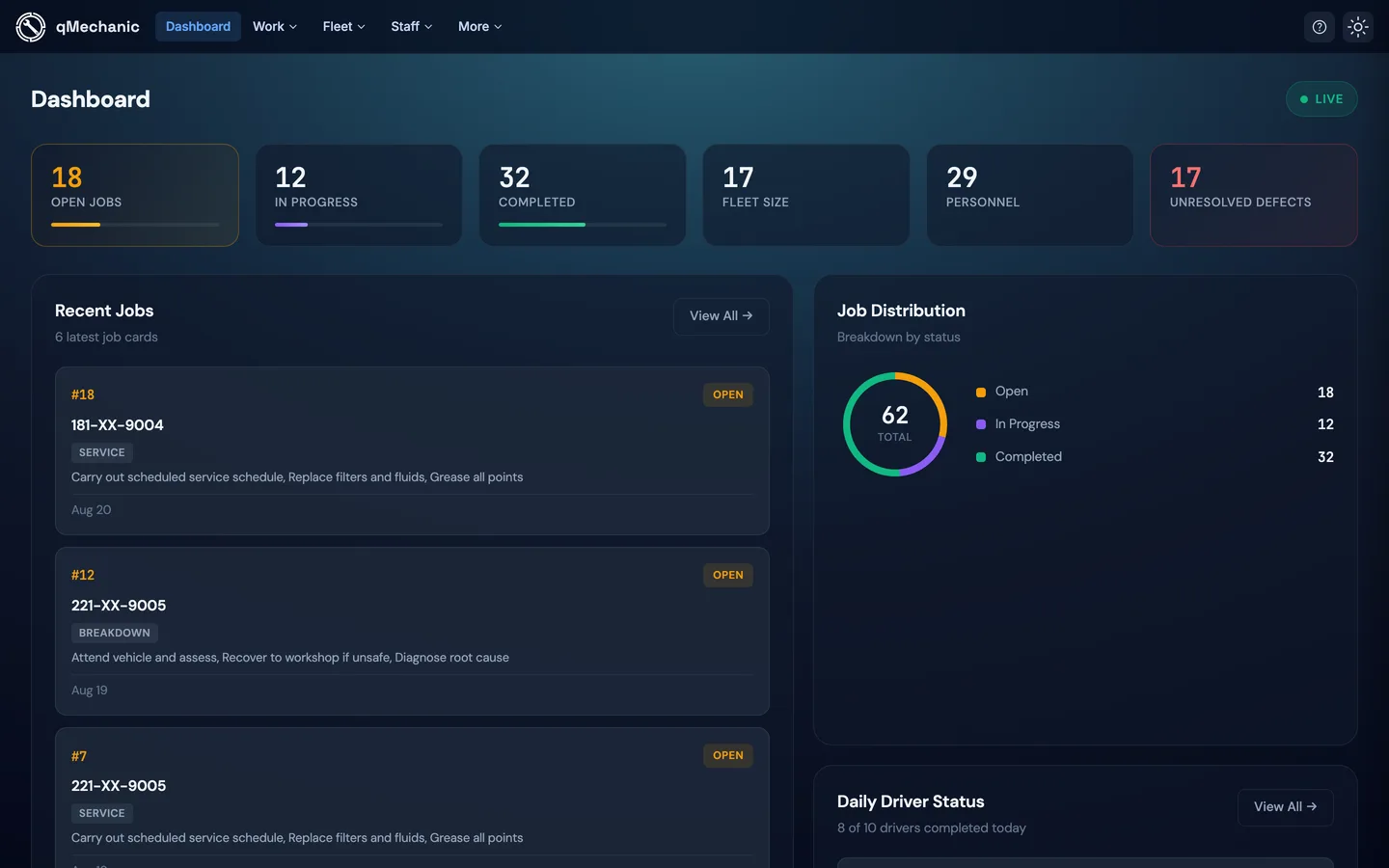
- Select “Login”. You’ll land on the Dashboard.
TipForgot your password? Ask another admin to reset it for you from People → the person → Edit → Reset password.
Finding your way around
The left-hand sidebar is your main menu. It is grouped into sections:
- Overview — the Dashboard, a snapshot of open jobs, defects and more.
- Work — Job Cards, Inspections and the Schedule.
- Fleet — Vehicles, Parts and Compliance events.
- Staff — People, Timesheets and Holidays.
- More — Reports, Chat and Messages.
- Your account menu (bottom, with your name) has Organization settings and Personal settings.
Finish setting up your workspace
A new workspace already works with sensible defaults, but it’s worth reviewing your settings.
- On the Dashboard, use the “Getting started” checklist — select “Configure system settings”.
- Or go to your account menu → Organization settings → System settings.
- Review Job types, Currency, VAT rates, Default labour rate and Company name, then Save any you change.
TipSee “Configuring system settings” for details on each setting.