Vehicles and compliance
Add vehicles, review a vehicle’s history, and track MOT/tax/insurance and other compliance events.
Who this is for: Staff who manage the fleet.
Add a vehicle
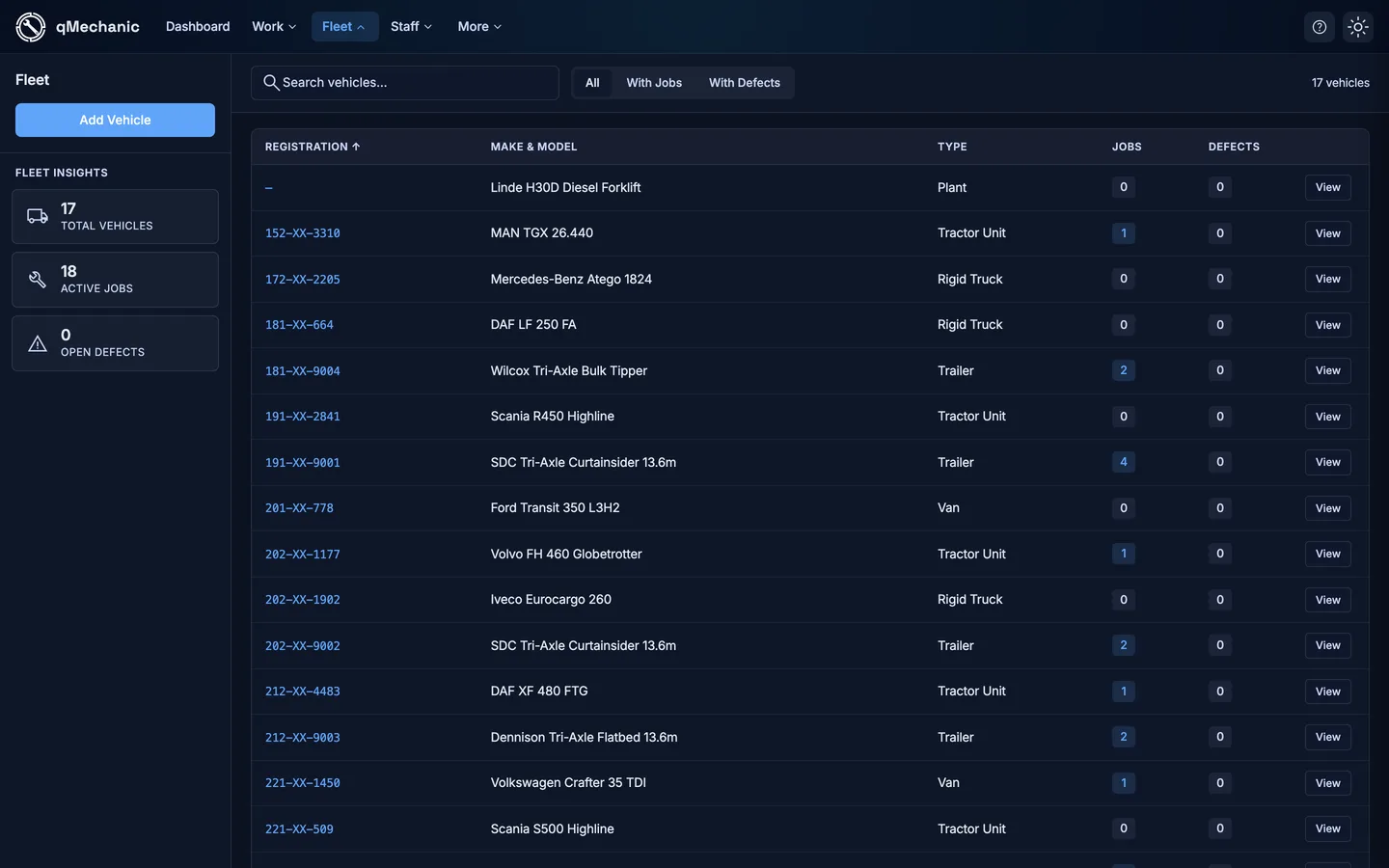
- Go to Vehicles, then select “Add vehicle”.
- Fill in the registration, make, model and any other details.
- Save.
Review a vehicle
Open any vehicle to see its detail page, organised into tabs:
- Overview — the vehicle’s details plus quick stats, including its current odometer reading.
- Jobs — job cards for this vehicle.
- Defects — faults recorded against it.
- Inspections — inspections carried out on it.
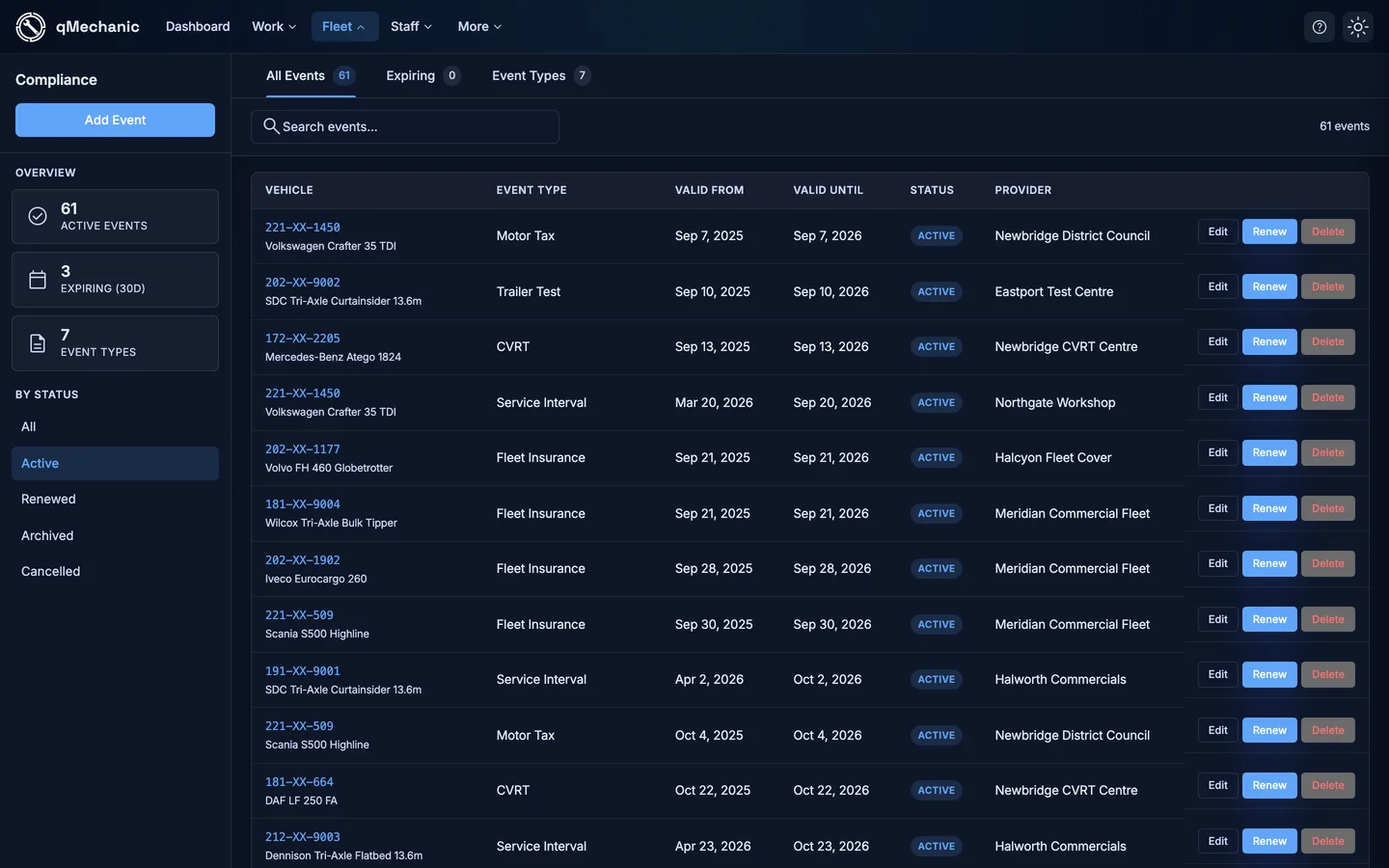
- Compliance — recurring events (MOT, insurance, tax, service) with their expiry and status.
Track compliance events
- Open the vehicle and go to the Compliance tab.
- Each event shows its type, expiry date and a status badge (green = fine, amber = due within 30 days, red = overdue).
- The “Compliance due” stat on the Overview tab counts anything overdue or due soon.
TipEvent types and their default reminder period are configured under Settings.